
Teach Me: The 30-Second Image Prompt Trick: Reverse-Engineer Any Visual with ChatGPT
Beginner ⏱ 15 min 📅 May 15, 2026
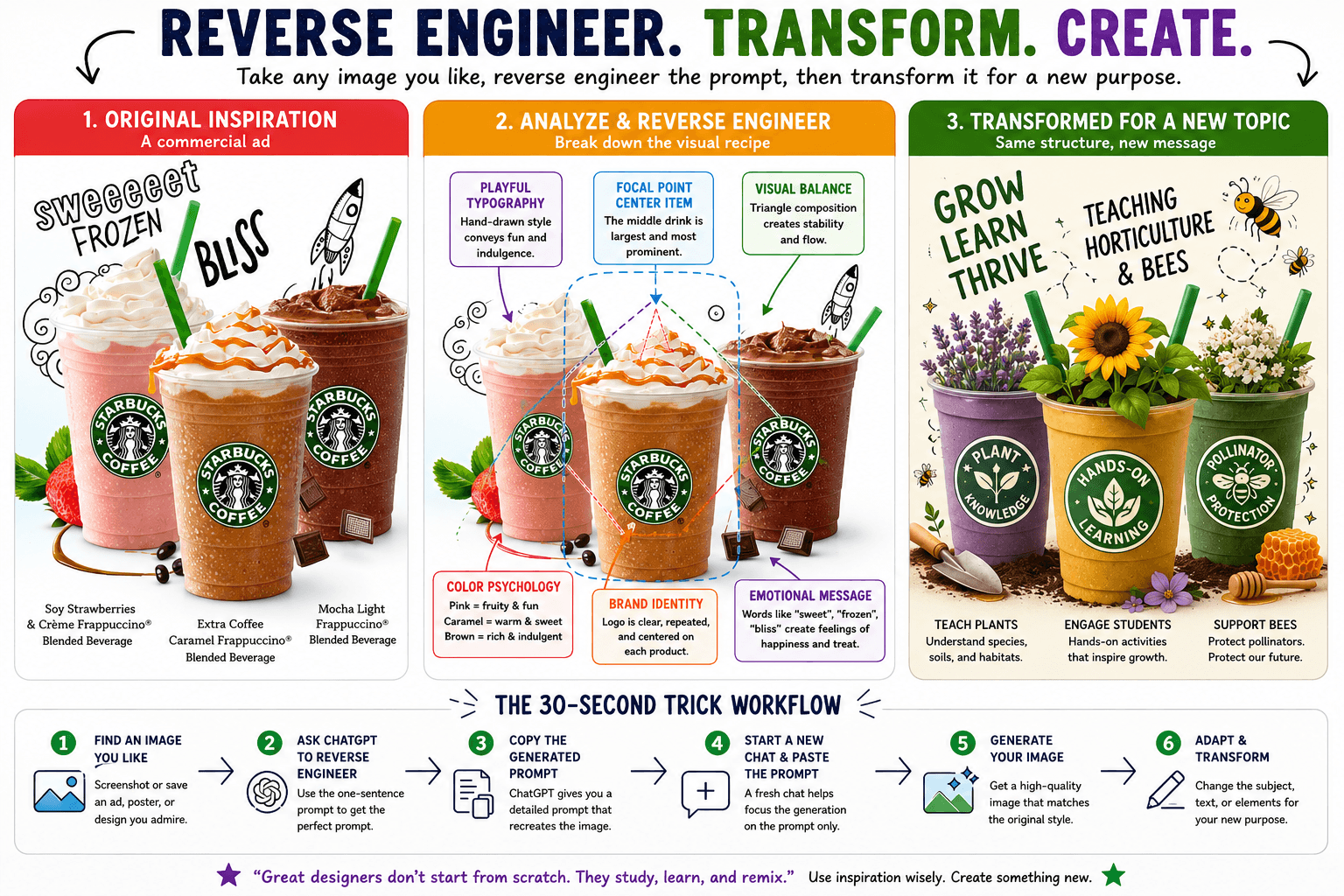
You've probably struggled with this: you want to create an image with ChatGPT's image generator, but you don't know how to describe what's in your head. You type something vague like "make a professional marketing image" and get... something that's definitely not what you imagined.
Here's the secret professional designers are using right now: instead of trying to write the perfect prompt from scratch, start with an image you like and have ChatGPT reverse-engineer the prompt for you. It's like having an expert prompter looking over your shoulder, teaching you the exact language that gets results.
This technique does two powerful things at once. First, you can recreate specific visual styles in seconds—perfect for making consistent classroom materials, presentation slides, or social media content. Second, after doing this just five or ten times, you'll naturally learn how to write better prompts yourself because you're seeing exactly what words and phrases ChatGPT responds to.
Why This Works (and Why You Should Care)
Traditional prompt engineering feels like guesswork. You try "a colorful poster," then "a vibrant educational poster with bold text," then you give up and settle for something mediocre. The reverse-engineering method flips this entirely.
- Learning by example – Instead of reading abstract prompting guides, you see real prompts that produce real results you can evaluate immediately
- Consistency across materials – Once you have a prompt that works, you can adapt it for different topics while maintaining the same professional look
- Speed and confidence – No more 10-minute prompt-writing sessions; you'll get usable results in 30 seconds
- Understanding AI language – You'll discover how ChatGPT thinks about lighting, composition, typography, and visual hierarchy
What You Need to Get Started
The beauty of this technique is its simplicity. You don't need design software, special accounts, or technical knowledge.
- A ChatGPT account – Free or paid works, though paid gives better image quality and fewer restrictions
- Example images – Screenshots from Instagram, professional ad campaigns, educational posters, presentation slides—anything with a visual style you want to replicate
- 5 minutes of experimentation – Seriously, that's all it takes to see how powerful this is
The One-Sentence Magic Prompt
Here's the exact prompt that makes everything work. Copy it, bookmark it, save it in your notes—you'll use this over and over.
That's it. No complex formatting, no special commands. You upload an image you like, paste this prompt, and ChatGPT will analyze every detail: the composition, colors, typography, layout, lighting, even subtle things like texture and mood. Then it writes you a complete prompt that recreates those elements.
Step-by-Step Walkthrough
Let's walk through exactly how to do this with a real example, so you can replicate the process for your own classroom needs.
- Find your example image – Let's say you saw a great Starbuck's ad with a clean layout, bold red background, and clear product photography. Screenshot it and crop to just the image itself.
- Open ChatGPT and start a new chat – Click the attachment icon (paperclip) to upload your image
- Paste the magic prompt – "Analyze this image and then write me a prompt that would get ChatGPT to actually create this image. Reverse engineer the prompt."
- Review ChatGPT's analysis – In seconds, you'll get a detailed breakdown describing the red background, golden arches positioning, Big Mac placement, "Better Together" headline, typography choices, and even the "I'm lovin' it" tagline placement
- Copy the generated prompt – ChatGPT has now written a complete, detailed prompt for you
- Open a fresh chat – Start completely new (this ensures ChatGPT focuses only on the prompt, not the conversation history)
- Paste and generate – Drop in that prompt and hit enter
- Compare results – You'll likely be shocked at how close the recreation is to your original
Adapting Prompts for Your Classroom
Once you have a prompt that works, you can modify it for different subjects and purposes. This is where the technique becomes truly powerful for educators.
- Subject matter swap – Keep the style elements but change "Starbucks Coffee" to "Biology cell diagram" or "Historical timeline graphic"
- Color scheme adjustments – Replace "vibrant red background" with "calming blue background" or "energetic yellow background"
- Text modifications – Change headlines and taglines to match your lesson content
- Complexity scaling – Simplify layouts for elementary students or add sophistication for college-level materials
After (adapted for science class): "Create a bold educational poster with vibrant blue background, featuring a labeled plant cell diagram prominently in the center, 'Photosynthesis Process' headline in white bold sans-serif font..."
What This Teaches You About AI Image Generation
After reverse-engineering just five or ten images, you'll notice patterns in how ChatGPT describes visuals. This knowledge transfers directly to writing your own prompts from scratch.
- Lighting vocabulary – You'll learn terms like "soft diffused lighting," "dramatic side lighting," "bright even illumination"
- Composition language – Phrases like "centered with negative space," "rule of thirds placement," "balanced asymmetrical layout"
- Typography specifics – "Bold sans-serif font," "elegant serif typeface," "hand-lettered style headline"
- Color precision – Moving beyond "red" to "vibrant cherry red," "muted burgundy," "gradient from crimson to orange"
- Mood and atmosphere – "Professional and clean," "warm and inviting," "energetic and dynamic"
Common Applications for Educators
Here's where this technique becomes practical for your daily teaching work.
- Presentation slides – Find a professional slide design you like, reverse-engineer it, then create matching slides for your entire unit
- Worksheet headers – Generate consistent, eye-catching headers that make handouts look polished
- Social media graphics – Create professional announcements for your class social accounts or learning management system
- Bulletin board materials – Design cohesive posters and displays without spending hours in Canva
- Infographics – Recreate the style of professional infographics for your subject area
- Certificate templates – Make student achievement certificates that look legitimately professional
Limitations and Workarounds
This technique is powerful but not magic. Understanding its limits helps you work more effectively.
- Celebrity faces are blocked – ChatGPT won't recreate images with recognizable people's faces for privacy reasons
- Copyrighted characters restricted – You can't reverse-engineer Mickey Mouse or SpongeBob exactly, but you can capture the "friendly cartoon character" style
- Text isn't always perfect – AI-generated text in images sometimes has typos or weird spacing; be ready to regenerate or edit
- Brand logos have limits – While the Starbuckss example works for learning purposes, creating actual brand assets requires caution about trademark issues
Copy-and-Paste Prompts
Try This Now
Stop reading and actually do this right now. Open ChatGPT, find any professional-looking image you admire (a poster, an ad, a slide design—anything), and run it through the reverse-engineering prompt. Spend the next five minutes seeing what happens.
You'll be shocked at how quickly you go from "I have no idea how to describe this" to "I understand exactly how to create visuals like this."